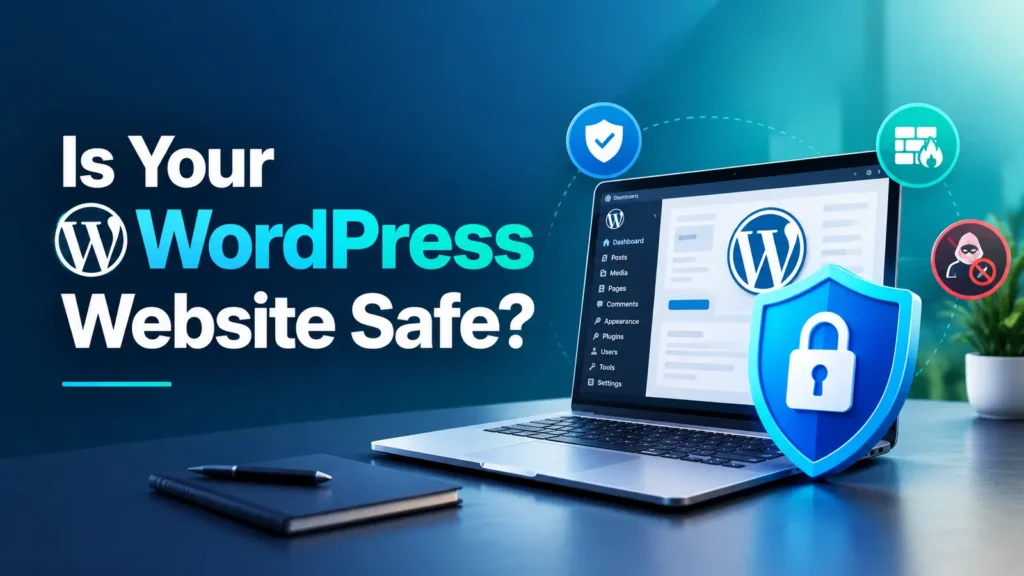
Is your WordPress website running on a secure and updated PHP version?
Your website plays an important role in your business. It helps customers discover your services, learn about your company, and contact you. However, outdated software, vulnerable plugins, and unsupported server technologies can expose your website to security risks.
Recent PHP security updates highlight why website owners should review their server environments. Checking your PHP version and applying relevant security fixes are important steps towards improving WordPress Website Security.
In this guide, you will learn what the PHP2Shell security alert means, how to check your PHP version, and how to protect your website from common security risks.
What Is the PHP2Shell Security Alert?
PHP is a server-side programming language that WordPress uses to process requests, communicate with databases, and display website content.
Like other software, PHP can contain security vulnerabilities. Depending on the vulnerability and server configuration, attackers may exploit affected installations to perform unauthorized actions.
On 21 October 2026, the PHP development team announced security releases addressing two critical remote code execution vulnerabilities: CVE-2026-109618 and CVE-2026-109619. The relevant fixed releases included PHP 8.5.12, 8.4.27, 8.3.36, and 8.2.35.
You can review the details in the “official PHP security announcement” (https://www.php.net/archive/2026.php).
A security alert does not automatically mean your website has been hacked. However, checking your PHP version and applying the appropriate security updates can help reduce avoidable risks.
Why WordPress Website Security Matters
Website security is important for businesses of every size. A compromised website can affect customer trust, business operations, and online reputation.
1. Protect Website Data
Security vulnerabilities may expose your website to unauthorised access or malicious activity. Keeping software updated and using appropriate security measures can help protect your website and its information.
2. Maintain Customer Trust
Visitors expect a business website to work correctly and handle their information responsibly. Suspicious redirects, browser warnings, and unexpected changes can make customers hesitate before contacting your business.
3. Reduce Website Downtime
Security incidents and technical errors can interrupt normal website operations. Regular backups and a recovery plan help you restore your website if something goes wrong.
4. Support SEO Performance
A compromised website may display spam content, redirect visitors, or trigger browser warnings. These problems can damage user trust and potentially affect search visibility. Security does not guarantee higher Google rankings, but a reliable website supports a better user experience.
How to Check Your WordPress PHP Version
Checking your PHP version is an important step in maintaining WordPress Website Security and reducing risks caused by outdated server software.
You can check your current PHP version using one of these simple methods.
Method 1: Check WordPress Site Health
1. Log in to your WordPress dashboard.
2. Navigate to Tools → Site Health.
3. Open the Info tab.
4. Expand the Server section.
5. Find the PHP version information.
Note down the version and compare it with the official security announcement to determine whether an update is required.
Method 2: Check Your Hosting Control Panel
Log in to your hosting account and look for options such as PHP Manager, Select PHP Version, or MultiPHP Manager. The name depends on your hosting provider.
Check which version is assigned to your website. Avoid changing it without checking compatibility with your WordPress installation, themes, plugins, and custom code.
Method 3: Contact Your Website Developer
If you are unsure about the technical details, ask your hosting provider or developer to confirm your current PHP version, check whether it is affected, and recommend an appropriate supported version.
Professional WordPress Development Services can help businesses assess compatibility and plan safe updates.
How to Improve Your WordPress Website Security
Effective WordPress Website Security combines regular software updates, secure login practices, malware monitoring, and reliable backups.
Checking PHP is only one part of protecting your website. Follow these practical steps to improve your website’s overall security.
1. Update PHP Safely
If your website uses an affected PHP version, contact your hosting provider or developer to arrange an upgrade to an appropriate supported version containing the relevant security fixes.
Before upgrading:
– Take a complete backup of your website files and database.
– Check theme and plugin compatibility.
– Test the update on a staging website if possible.
– Confirm that important website functions work correctly afterwards.
Choose a supported version that is compatible with your website rather than simply selecting the highest version number.
2. Update WordPress, Themes, and Plugins
Outdated WordPress software, themes, and plugins can introduce additional security risks. Check your dashboard regularly for trusted updates, and remove unused or untrusted plugins.
Regular updates are an essential part of WordPress Website Maintenance. A consistent maintenance routine also helps you identify potential issues before they become bigger problems.
3. Use Strong Passwords
Use unique, strong passwords for WordPress and hosting accounts. Enable two-factor authentication where available, and remove administrator access for users who no longer need it.
Review user permissions periodically and provide each user with only the access required for their role.
4. Scan for Malware
Use a reputable security plugin or hosting security service to check for suspicious files and unusual activity.
If you suspect your website has been compromised, updating PHP alone may not remove the threat. Investigate the incident, secure affected accounts, and seek professional assistance when necessary.
5. Maintain Regular Backups
Back up both your website files and database. Store copies securely and test whether they can be restored successfully. A reliable backup can help you recover from accidental changes, technical errors, or certain security incidents.
6. Test Your Website After Updates
After making changes, check your homepage, navigation, contact forms, login functionality, mobile layout, and important service pages. If your website has an online store, test its cart and checkout process as well.
If errors appear after an update, contact your developer or hosting provider rather than making random changes to the live website.
How Website Security Supports Digital Marketing
A secure website provides a reliable foundation for digital marketing. Even an effective campaign may lose results if visitors encounter technical errors, suspicious redirects, or security warnings.
Website owners should consider security alongside technical SEO, page speed, mobile usability, and helpful content.
Businesses looking to improve their online presence can explore our Website Development Services in Kochi to learn about solutions for building and maintaining business websites.
You can also explore our SEO services for information about improving website visibility through technical optimisation and relevant content.
For businesses looking for broader online growth, Digital Marketing Services in Kochi can support their marketing objectives. A Digital Marketing Agency in Kochi can help businesses plan strategies suited to their audience, goals, and available resources.
The right approach combines a functional website, useful content, appropriate security measures, and a clear digital marketing strategy.
WordPress Website Security Checklist
Use this checklist to review your website regularly.
– [ ] Check your current PHP version.
– [ ] Confirm that your PHP version receives security support.
– [ ] Apply relevant security updates after compatibility checks.
– [ ] Update WordPress, themes, and plugins.
– [ ] Remove unused or untrusted plugins.
– [ ] Use strong passwords and appropriate user permissions.
– [ ] Enable two-factor authentication where available.
– [ ] Scan for malware and suspicious activity.
– [ ] Maintain secure backups.
– [ ] Test important website functions after updates.
Frequently Asked Questions
1. How do I check my WordPress PHP version?
Go to Tools → Site Health → Info → Server in your WordPress dashboard. You can also check your hosting control panel or contact your hosting provider.
2. Does an outdated PHP version mean my website has been hacked?
No. An outdated version does not automatically mean your website has been compromised. However, it may expose your website to known security risks.
3. Can updating PHP break my website?
Compatibility issues can occur with older themes, plugins, or custom code. Take a backup, check compatibility, and test the update before applying it to your live website whenever possible.
4. Can website security affect SEO?
A compromised website may display spam or redirect visitors, potentially harming user trust and search visibility. Good security practices help maintain a reliable website but do not guarantee higher rankings.
Final Thoughts
WordPress Website Security should be an ongoing priority for every business that depends on its website. Checking your PHP version, applying appropriate security updates, maintaining backups, and keeping your software updated can help reduce avoidable risks.
Strong WordPress Website Security requires more than an attractive design. Regular maintenance, reliable functionality, and timely security updates are essential for protecting website data, maintaining an online presence, and building customer trust.
Need professional support for your website? Explore our WordPress Website Development solutions to learn how Eleven:11 Marketing Services can help you build and maintain a reliable online presence.